
This setup is for the Mobile Application Development with Flutter.
After completing this setup, students can create and run all Flutter lab programs such as:
Hello Flutter, Counter App, Login Screen, To-do List, Calculator, Weather App, Stopwatch, Navigation, E-commerce UI, Animated Logo, Expense Tracker, and Quiz App.
Flutter official setup supports Windows development using VS Code, Flutter SDK, and Android Studio Android tools.
Required Software
Download and install the following software only:
1. Git for Windows
Git is required because Flutter uses Git internally.
Install Git using the default installation options. Download
Check installation:
git --versionGit for Windows provides Git support for Windows systems.
2. Visual Studio Code
Visual Studio Code is used to write and run Flutter programs. Download
During installation, select these options:
Add to PATH
Create a desktop icon
Open with CodeCheck installation:
code --versionVS Code is available for Windows and is officially supported for Flutter development.
3. Android Studio
Android Studio is required for:
Android SDK
Android Emulator
Android Platform Tools
Android Build Tools
Android Command-line ToolsInstall Android Studio using the default installation options. Download
Android Studio provides the Android development tools required for Flutter Android apps.
4. Flutter SDK
Download the latest stable Flutter SDK for Windows. Download
Do not install Flutter inside:
C:\Program Files
C:\Program Files (x86)
Desktop
DownloadsUse a simple path without spaces.
Recommended path:
C:\src\flutterFlutter is used to build apps from a single codebase for Android and other platforms.
5. Install Flutter SDK
Create this folder:
C:\srcExtract the Flutter ZIP file inside C:\src.
Final Flutter path should be:
C:\src\flutterMake sure this file exists:
C:\src\flutter\bin\flutter.bat6. Add Flutter to Windows PATH
Open Windows search and search:
Environment VariablesOpen:
Edit the system environment variablesClick:
Environment VariablesUnder User variables, select:
PathClick:
Edit > NewAdd this path:
C:\src\flutter\binClick OK on all windows.
Close and reopen Command Prompt or VS Code.
Check Flutter:
flutter --versionFlutter commands work in terminal only after adding Flutter SDK bin folder to PATH.
7. Check Flutter Doctor
Open Command Prompt and run:
flutter doctorThis command checks Flutter, Android SDK, Android licenses, and connected devices.
At this stage, some warnings are normal because Android setup is not finished yet.
8. Setup Android Studio SDK
Open Android Studio.
Go to:
More Actions > SDK ManagerOpen the SDK Platforms tab and install one latest Android SDK platform.
Then open the SDK Tools tab and install or update:
Android SDK Build-Tools
Android SDK Command-line Tools
Android SDK Platform-Tools
Android EmulatorClick:
Apply > OKThe Android SDK packages can be managed from Android Studio SDK Manager.
9. Accept Android Licenses
After Android SDK setup, open Command Prompt and run:
flutter doctor --android-licensesPress:
yfor all license questions.
Then run:
flutter doctorAndroid toolchain should show a green tick after SDK tools and licenses are configured.[X] Visual Studio - develop Windows apps Visual Studio is needed only if you want to build Windows desktop apps using Flutter. For Android mobile app development, you can ignore this warning.
10. Install Flutter Extension in VS Code
Open Visual Studio Code.
Go to:
ExtensionsSearch and install:
FlutterThe Dart extension will be installed automatically with the Flutter extension.
The Flutter extension is the official VS Code extension used for Flutter development.
11. Create Flutter Project for VTU Lab Programs
Create one folder for Flutter projects:
cd C:\
mkdir FlutterProjects
cd FlutterProjectsCreate one Flutter project:
flutter create vtu_flutter_labOpen the project:
cd vtu_flutter_lab
code .This single project can be used to complete all VTU Flutter lab programs.
12. Add Required Packages
Open terminal inside the project folder and run: if asking to enable developer option then run start ms-settings:developers and scroll down to enable developer options.
flutter pub add http
flutter pub add fl_chart
flutter pub add shared_preferences
flutter pub add intlThen run:
flutter pub getPackage usage:
http                 Weather app API
fl_chart             Expense tracker report chart
shared_preferences   Save to-do, expense, and quiz data
intl Date and time formatting13. Connect Android Device
Students can run Flutter apps using either an Android phone or Android emulator.
Option 1: Android Phone
On Android phone:
Settings > About Phone > Tap Build Number 7 timesThen enable:
Developer Options > USB DebuggingConnect phone using USB cable.
Check device:
flutter devicesIf the phone appears in the list, it is ready.
Option 2: Android Emulator
Open Android Studio.
Go to:
More Actions > Virtual Device ManagerCreate one Android virtual device.
Start the emulator.
Check emulator:
flutter devices14. Run Flutter Project
Inside the project folder, run:
flutter runIf multiple devices are connected, first check device ID:
flutter devicesThen run using device ID:
flutter run -d DEVICE_IDExample:
flutter run -d emulator-555415. Final Verification Commands
Before starting lab programs, run these commands:
git --version
flutter --version
flutter doctor
flutter devices
flutter runYour setup is correct when:
Git command works
Flutter command works
Flutter doctor shows Android toolchain ready
Android phone or emulator is detected
Flutter project runs successfully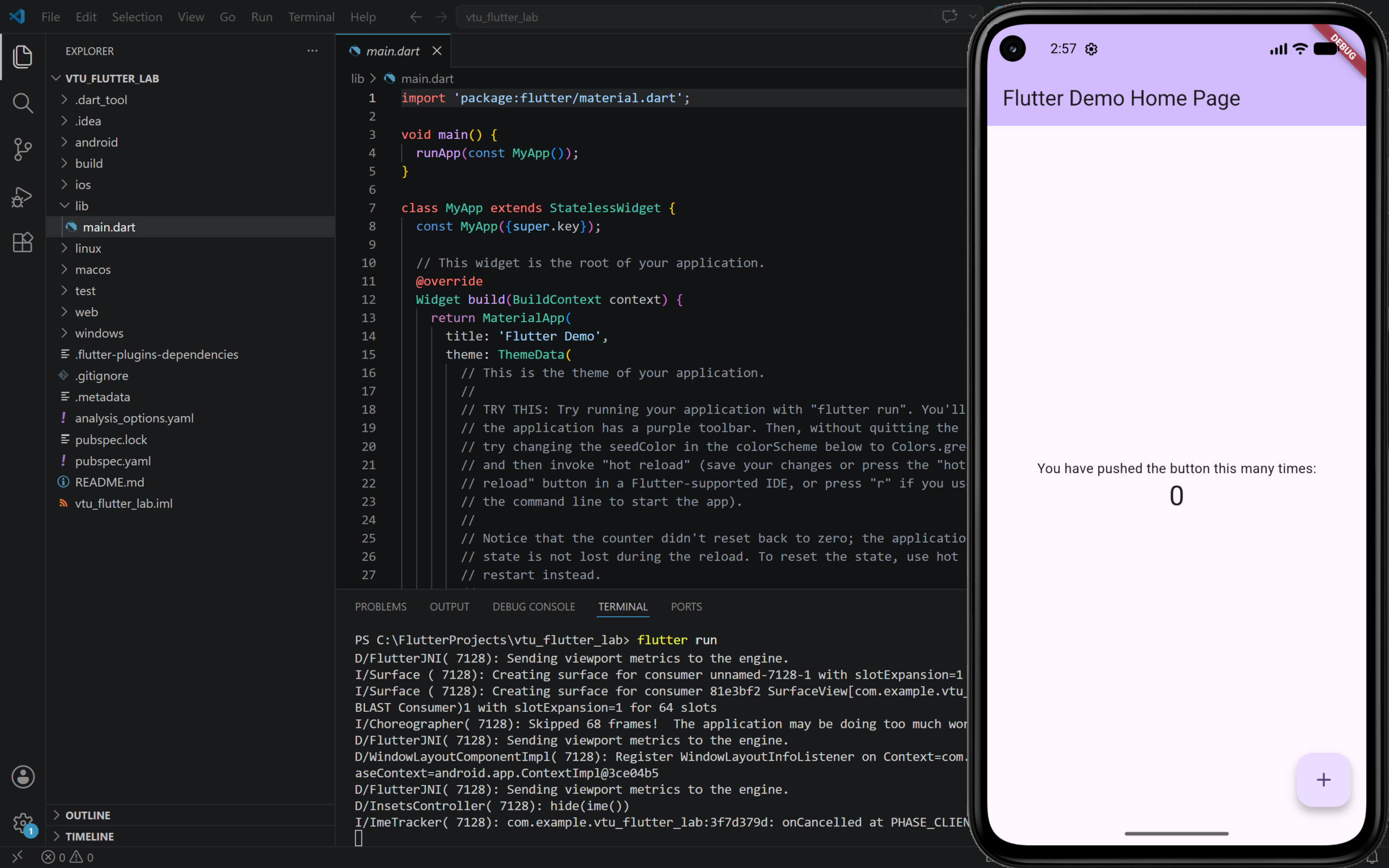
Final Project Location
Use this project for all VTU Flutter lab programs:
C:\FlutterProjects\vtu_flutter_labNow the system is ready to create and execute all VTU Flutter lab programs.
How to Run Each Flutter Lab Program
- Open your Flutter project in VS Code.
- Open
lib/main.dart. - Delete the old code.
- Paste the new program code.
- Save the file.
- Run the program:
flutter runOr run on emulator:
flutter run -d emulator-5554For every new lab program, replace only the code in lib/main.dart and run again.