
6. Create a component Counter with A state variable count initialized to 0. Create Buttons to increment and decrement the count. Simulate fetching initial data for the Counter component using useEffect (functional component) or componentDidMount (class component). Extend the Counter component to Double the count value when a button is clicked. Reset the count to 0 using another button.
Step 1: Create Project
- Create a folder and open with vscode.
- Open integrated vscode terminal.
- After then create a react app using below command.
npx create-react-app counter-app- After creating successfully then change the directory using below command.
cd counter-appStep 2: Create File inside the src folder
- Create two separate file
Counter.jsandCounterClass.jsinside the src folder. - After then copy the below code and paste within the respective file
Counter.jsandCounterClass.js - After then Modify the
App.jsfile present in thesrcfolder. Copy the below code and paste it. - After then Modify the
App.cssfile present in thesrcfolder. Copy the below code and paste it.
Counter.js:
import React, { useState, useEffect } from 'react';

const Counter = () => {
  const [count, setCount] = useState(0);

  useEffect(() => {
    console.log('Fetching initial data...');
  }, []);

  const increment = () => setCount(prevCount => prevCount + 1);
  const decrement = () => setCount(prevCount => prevCount - 1);
  const doubleCount = () => setCount(prevCount => prevCount * 2);
  const resetCount = () => setCount(0);

  return (
    <div>
      <h1>Count: {count}</h1>
      <button onClick={increment}>Increment</button>
      <button onClick={decrement}>Decrement</button>
      <button onClick={doubleCount}>Double</button>
      <button onClick={resetCount}>Reset</button>
    </div>
  );
};

export default Counter;
CounterClass.js:
import React, { Component } from 'react';

class Counter extends Component {
  constructor(props) {
    super(props);
    this.state = { count: 0 };
  }

  componentDidMount() {
    console.log('Fetching initial data...');
  }

  increment = () => {
    this.setState(prevState => ({ count: prevState.count + 1 }));
  };

  decrement = () => {
    this.setState(prevState => ({ count: prevState.count - 1 }));
  };

  doubleCount = () => {
    this.setState(prevState => ({ count: prevState.count * 2 }));
  };

  resetCount = () => {
    this.setState({ count: 0 });
  };

  render() {
    return (
      <div>
        <h1>Count: {this.state.count}</h1>
        <button onClick={this.increment}>Increment</button>
        <button onClick={this.decrement}>Decrement</button>
        <button onClick={this.doubleCount}>Double</button>
        <button onClick={this.resetCount}>Reset</button>
      </div>
    );
  }
}

export default Counter;
App.js:
import React from 'react';
import './App.css';
import Counter from './CounterClass';

function App() {
  return (
    <div className="App">
      <h1 className='head'>Welcome to the Counter App</h1>
      <Counter />
    </div>
  );
}

export default App;
App.css:
.App {
  border-radius: 7px;
  background: #ffeaea;
  text-align: center;
}

#root {
  margin: 20px auto;
  width: 40%;
  height: 400px;
}

h1 {
  color: #fff;
  font-size: 25px;
  border-radius: 6px;
  margin: 20px auto;
  background: #000000;
  width: fit-content;
  padding: 10px 60px;
}

.head {
  width: 100%;
  font-size: 25px;
  margin: 0;
  border-radius: 6px;
  color: #fff;
  background: #000000;
  padding: 10px 0;
}

button {
  margin: 10px;
  padding: 8px 10px;
  font-size: 16px;
  border: none;
  font-weight: 600;
  border-radius: 5px;
  cursor: pointer;
  background: #e02020;
  color: #fff;
}
Step 3: Start the Development Server
Now, you can start the development server by using below command:
npm startThis will start a local development server and automatically open your new React application in your default web browser. The server will reload the page automatically whenever you make changes to your code.
OUTPUT:
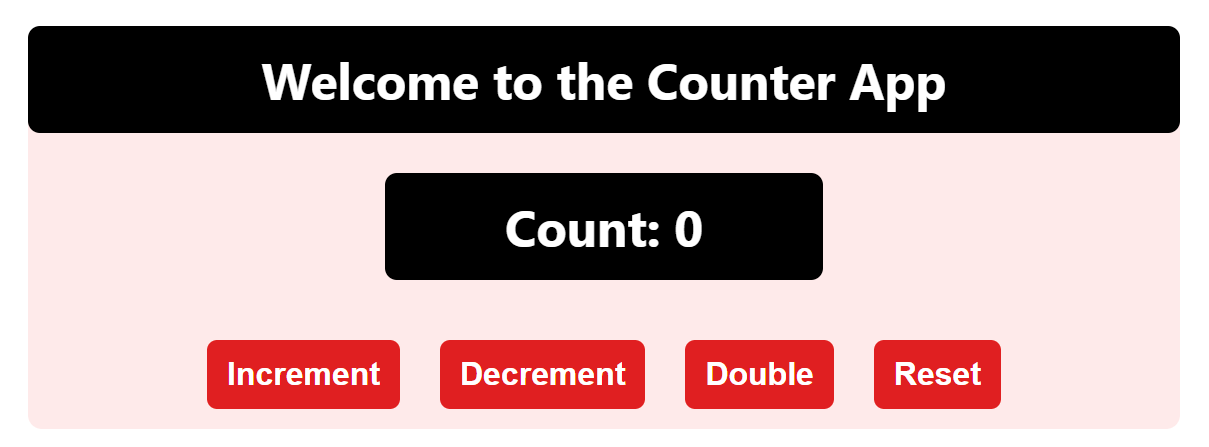
“Fixing the Module not found: Error: Can't resolve 'web-vitals' Error in React”
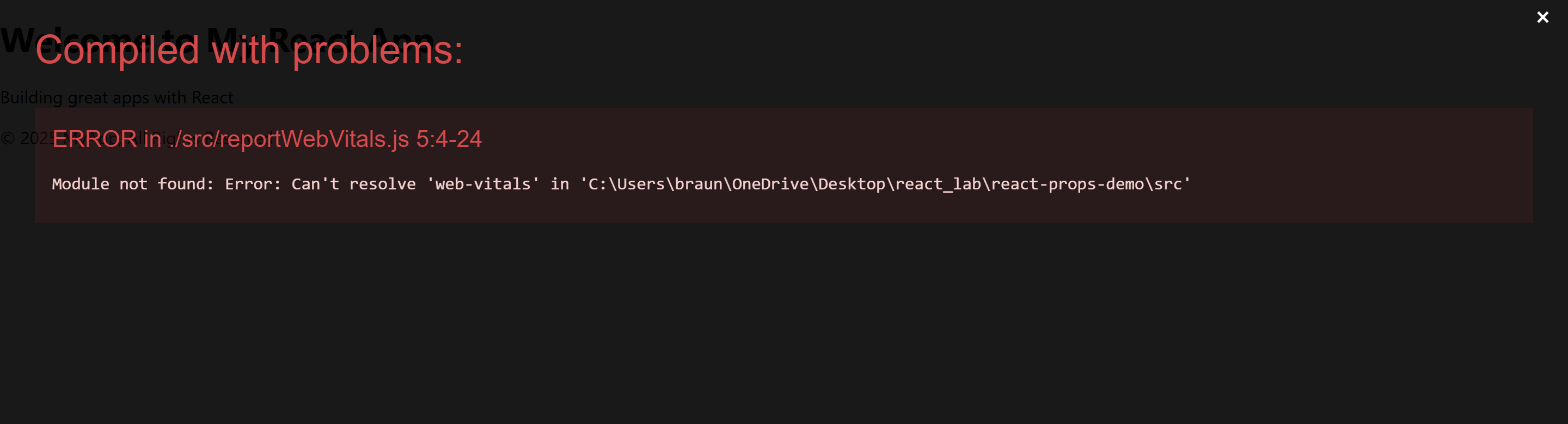
The error you’re seeing occurs because the web-vitals package, which is used for performance monitoring in a React app, is not installed by default in the project or has been removed. Since web-vitals is an optional package, you can safely resolve this issue by either installing the package or removing the code that imports it.
Option 1: Install the web-vitals package
If you want to keep the performance monitoring functionality and resolve the error, simply install the web-vitals package.
- In the terminal, navigate to your project folder (if not already there):
cd counter-app- Install
web-vitalsby running the following command:
npm install web-vitals- After installation is complete, restart the development server:
npm startThis should resolve the error, and your application should compile correctly.
Option 2: Remove the Web Vitals Code (If Not Needed)
If you don’t need performance monitoring and want to get rid of the error, you can safely remove the import and usage of web-vitals from your code.
- Open
src/reportWebVitals.jsand remove its contents or just comment out the code:
// import { reportWebVitals } from './reportWebVitals';

// You can safely remove the call to reportWebVitals or leave it commented out
// reportWebVitals();- Save the file, and the application should compile without the error. You can now continue developing your app.